Setting Up Your Fluke
Configure the Fluke DSX tester for a CommScope-compliant test before you certify any cable.
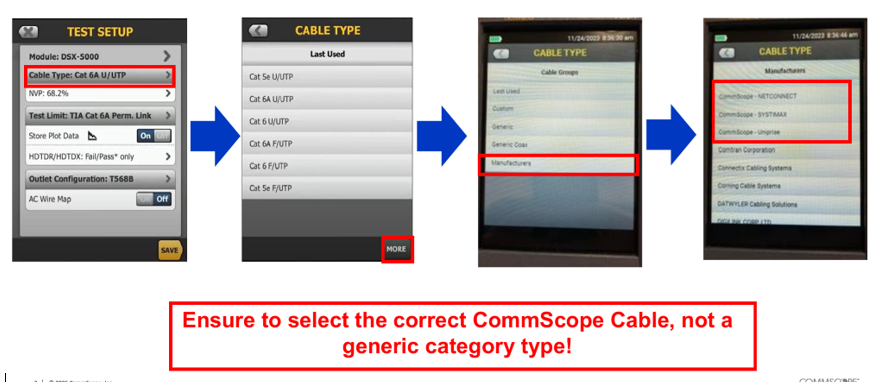
Quick path
On the Fluke tester:
Test Setup →
Cable Type (Category 6A) →
More →
Manufacturers →
select CommScope cable (SYSTIMAX) →
Cable Type to 1091
Step by step
- On the home screen, tap the Test Setup box (the large button showing the current configuration).
- Tap Edit to alter the test template.
- Tap Cable Type.
- Choose More → Manufacturers.
- Scroll down and select CommScope (SYSTIMAX).
- Look for and select 1091 (covers the SYSTIMAX GigaREACH XL UTP cable family).
Ensure the NVP value matches your specific spool documentation for accurate length readings.
- Tap Save, then re-test.
The default Test Limit (e.g. TIA Cat 6A) is fine — only the Cable Type must be 1091/2091.
What the report must show
- Every cable must read PASS.
- Cable Type must be 1091 or 2091 (CommScope SYSTIMAX — warranty requirement).
- 1091 is non-plenum cable; 2091 is plenum cable. Select the one that matches the space — you will get a warning if you select 2091.
- Headroom must be greater than 1 dB.
- Main & Remote DSX calibration must be within 6 months.
Ensure to select the correct CommScope Cable, not a generic category type!
Reference screenshots